 David Yates.
Google’s Nano Banana / Gemini Image family of image generation models are some of the most powerful tools for generating complex and precise AI images.
However, when created through the official Gemini interface, all generated images are stamped with an unsightly Gemini spark logo1 in the bottom-right corner, making them unsuitable for any kind of external use.
I am so sick of seeing this stupid sparkle.
This happens regardless of what Google AI plan you’re on. Fortunately, the watermark is pretty simple to remove. Here are a few of the best ways:
# Use reverse alpha blending
Several projects remove the watermark with reverse alpha blending. I’ve found them to be the easiest and most generally effective way of removing the watermark, subject to the following caveats:
- For some images, this method does not find the watermark correctly, creating an extra negative watermark.
- This method is consistently least effective when the watermark appears on a white background.
Gemini Watermark Remover provides an easy-to-use, browser-based tool for doing this, based on this source code. I’ve also had some success with this Rust crate for command-line, batch-removal of watermarks.
Watermark removed with reverse alpha blending via Pilio
# Use Smart Patch in an image editor
For tough stains that just won’t yield to reverse alpha blending, I use Smart Patch in Krita, or Smart Fill from Acly’s Krita Vision Tools, depending on what works better on a given image. Other image editors definitely have similar features, and for a simple enough image you could probably achieve similar results with the clone brush.
Watermark removed with Krita Vision Tools Smart Fill
# Use Google Flow
Google Flow is a Gemini-powered video and image creation and editing platform aimed at creative professionals. As of mid-2026, having a Google account gets you 50 free usage credits per day. If you’re paying for one of the Google AI plans, you get a few hundred to a few thousand credits per month on top of that.
Images generated in a Flow project are beautifully watermark-free.
For some reason, you also have the option to toggle the watermark back on.
You’d have to be a real sick freak to do this.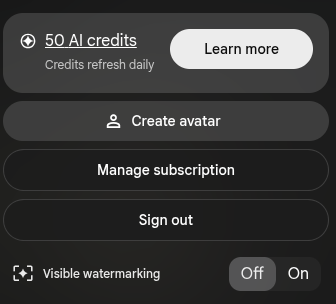
# Use the API instead of the Gemini app
Visible watermarks are absent from images generated through the Gemini API.
No watermark!
However, generating images this way incurs usage-based pricing, even if you’re a Google AI subscriber. This will only put you out a few cents per image though.
The easiest way to generate images through the API is through Google AI Studio, but you could also ask a coding agent to do it for you using an API key. Or curl the relevant API route yourself, I guess.
# Taking it further
While I’m mostly concerned with the unsightly corner sparkle, I’d be remiss not to mention that Gemini-generated images also contain identifying metadata and Google’s invisible SynthID watermark.
Removing identifying metadata is simple – just use ExifTool.
exiftool -all= filename.jpg
SynthID removal is a much trickier problem. The most common approach at the time of writing seems to be passing an NBP generated image through img2img with an open-weight model like Stable Diffusion XL at low denoise. I haven’t had much success with this personally – in my experience it changes the image noticeably even at 5% without rendering Gemini unable to detect it. I suspect you may see better results if you use open weight models to (intentionally) make more substantial changes to NBP images, but I have not experimented with this very much.
The old DALL-E 2 watermark looked much nicer. ↩︎